All guidesDrawings and modelSheet 2.02
Read the drawings and compare their revisions
Drawings shows every sheet of the project, read from the uploaded PDF, DWG and DXF files. You look at the plans, the notes from site on them and the new revisions here, with no CAD program.
Open the drawings
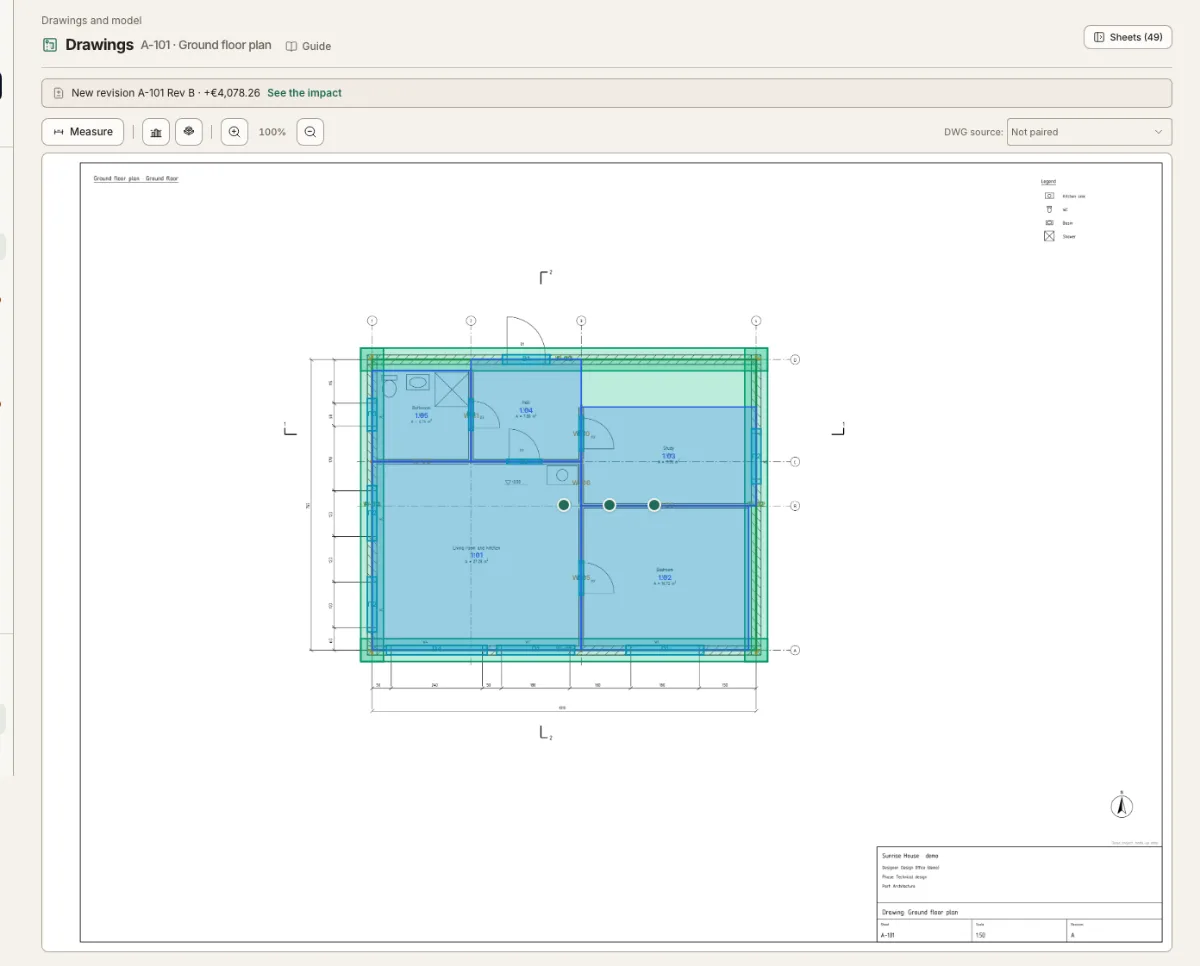
Choose Drawings in the left bar; on a phone it is in the menu. The building's first plan opens, and the sheet's code and name sit beside the title. Zoom in and Zoom out bring the sheet closer and further, and the percentage between them brings back the whole sheet. Zoomed in, the sheet moves when you drag it. Open in 3D opens the building's 3D model.
Find a sheet
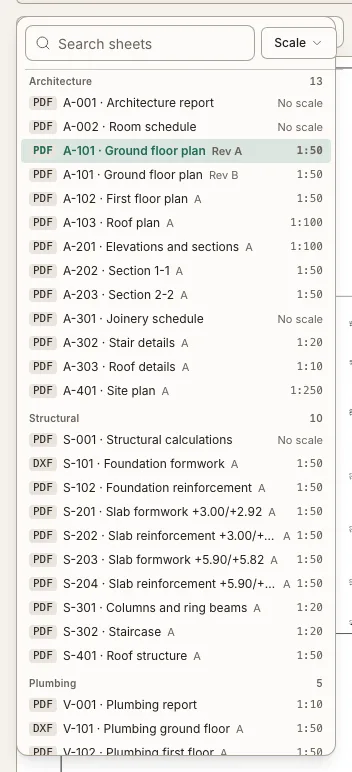
Sheets at the top right opens the list of sheets, by part and by code. Each sheet shows its format, its revision and its scale, such as 1:50, or No scale if its scale is not confirmed yet. Search in Search sheets by code or name, and Scale keeps only the sheets at one scale, or those without one. Choose a sheet to open it; Escape hides the list. After a new version of a file, the list shows only the new one's sheets.
Hide the layers of a DWG drawing
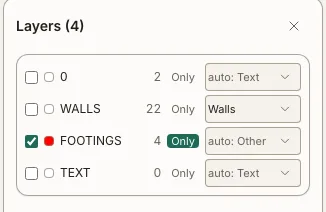
A sheet from a DWG or DXF file, such as S-101, keeps the drawing's layers. The Layers button in the toolbar lists them with how many elements each has. Untick a layer to hide it, or choose Only to keep it alone. Each layer says what Ravno recognised in it, such as walls or text, and the owner can change that. A PDF sheet has the button only if the file has layers.
Read a note from site
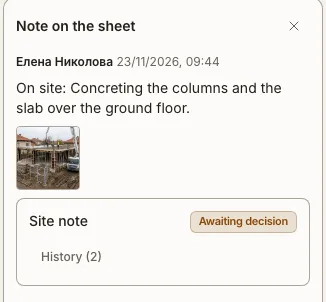
The dots on the plan are notes and photos from site, pinned where the work was. Choose a dot: the Note on the sheet shows who wrote it and when, the text, the photos and how far its approval has gone. Notes on one spot spread around it so each can be chosen, on a phone too.
Overlay two sheets
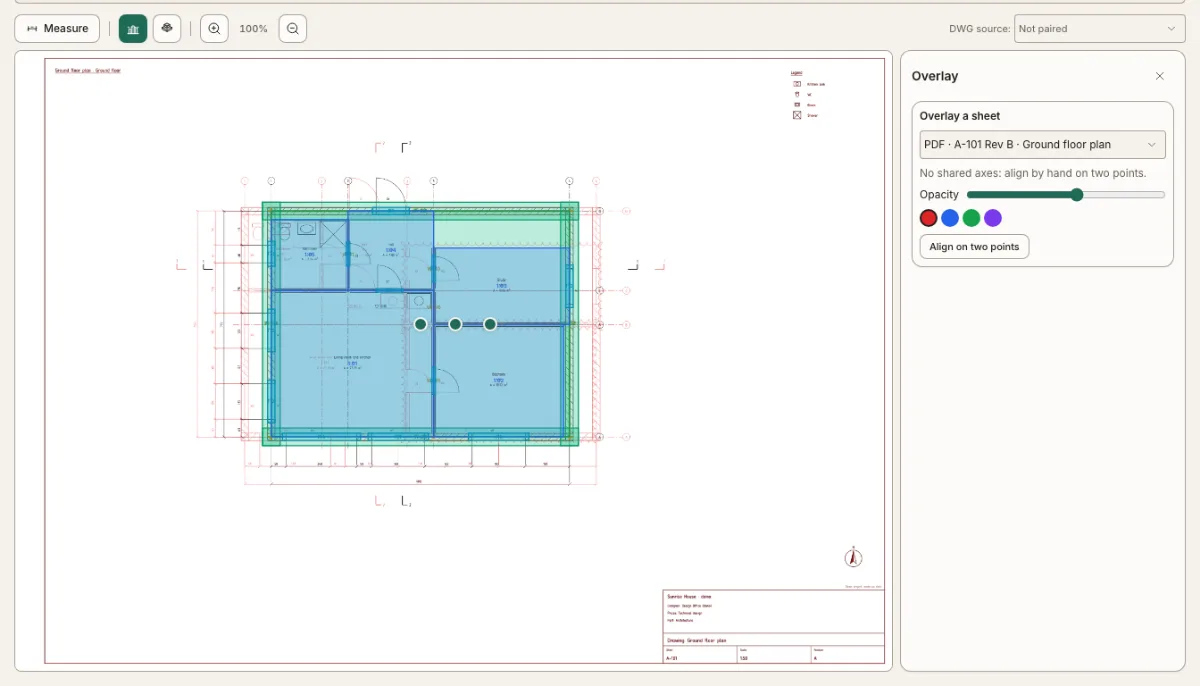
Overlay lays another sheet in colour over the open one, so the differences show. Choose the sheet in Overlay a sheet, for example A-101 Rev B over Rev A. Ravno aligns them on their shared axes or their shared drawing. If it finds neither, it lays them by the sheet's frame; then choose Align on two points and click two points on the sheet on top, then the same two on the one below. Opacity and the tint make the sheet on top clearer. No overlay takes it away, and another sheet opens without an overlay.
See what a new revision changes
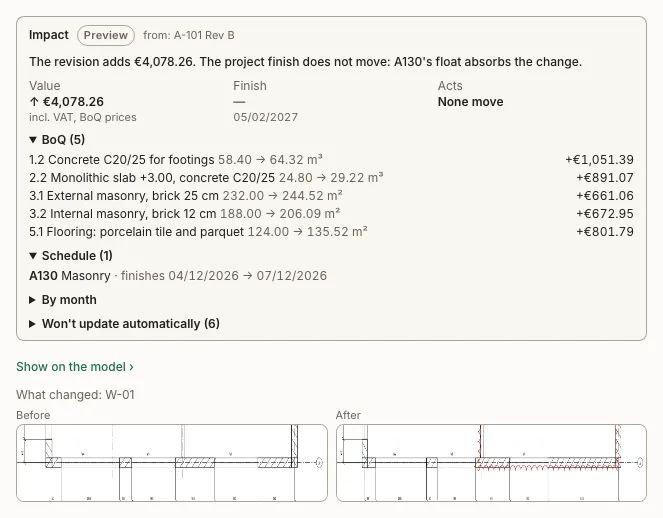
When a sheet has a newer revision, a line above it says, for example, “New revision A-101 Rev B” and how much the value changes. See the impact shows the impact: the value, the project's finish, the bill's rows and the schedule's activities that move. To see the two revisions side by side, open Documents, preview the sheet and choose Compare revisions. The compare shows them as Overlay or Side by side and counts what was added, removed and changed.