All guidesGetting startedSheet 1.05
See what waits on you and find anything in a project
Overview is the first page of every project: it says what waits on you and how far the project has come. Search, favourites and saved views take you straight where you need to be, and the log shows who changed what. The example is Sunrise House, opened by its owner.
Open the overview
Open the project: its first page is Overview. At the top are four figures: Shell construction offer, Open discrepancies, Acts to sign and Schedule finish. Each is a link to the list it counts, already filtered, such as only the open discrepancies. A new project, with no files, BoQ or schedule yet, shows only its next step in their place.

See what waits on you
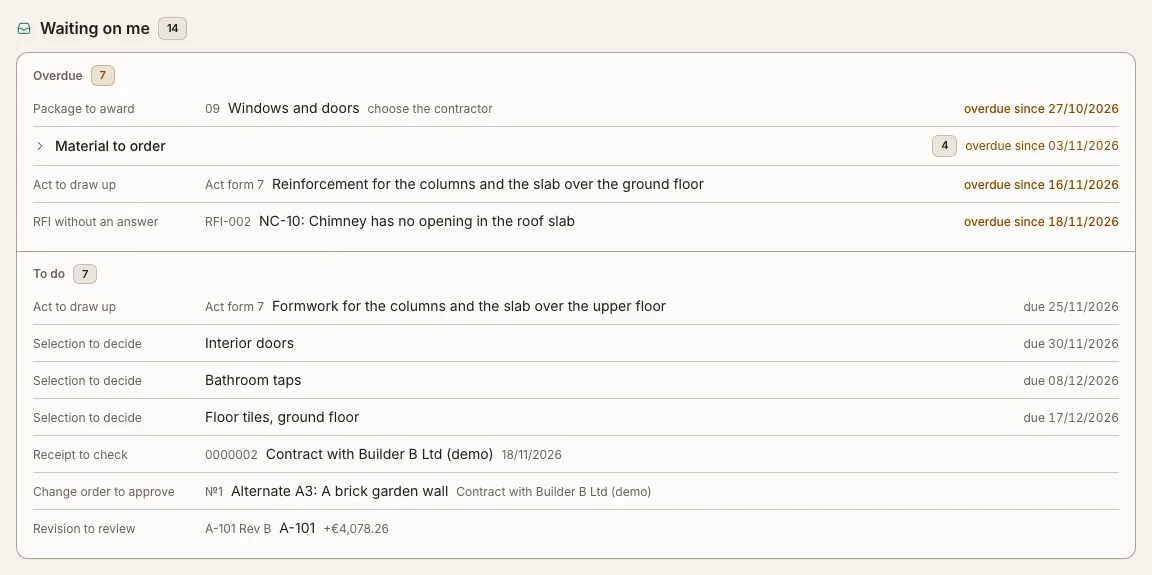
Under the figures is Waiting on me: everything that waits on you in particular, such as discrepancies assigned to you, acts, selections to decide and packages to award. Overdue come first, then To do, each with its date. Four or more things of one kind share one row with their count; open it to see them. Each row opens its record on its own page, where you do the work.
See the schedule and the latest files
Next activities lists the five coming or current activities of the active schedule, by their start. The critical ones say Critical beside their dates: a delay to one moves the finish. Open schedule takes you to the schedule. Recently uploaded shows the five files uploaded last; each opens its preview, and All documents goes to Documents.
Search the whole project
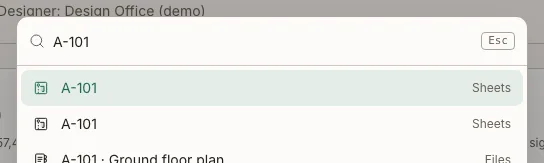
Press Search at the top of the left bar, or ⌘K (Ctrl+K on Windows); on a phone the magnifier button is at the top, beside your profile. Type the name of a page, a sheet's code, a file, a discrepancy or an act: pages come first, then records. Enter or a click opens the one you chose. Before you type, the pages you opened recently are at the top.
Pin the pages you use most
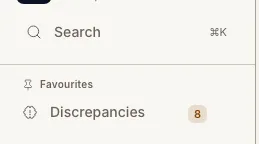
Point at a page in the left bar and press the pin beside its name; on a phone the pin always shows. The page moves to Favourites at the top of the bar, and a second press puts it back. Favourites are your own and kept in this browser. The number beside Discrepancies counts the open discrepancies and the ones the check proposed that wait for review in Coordination, so it can be higher than the overview's figure.
Save a view of a list
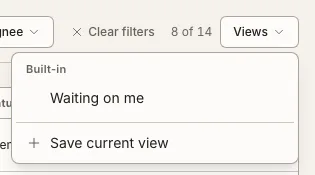
Lists such as the discrepancies, documents, BoQ, packages, acts and the schedule have a Views menu. Under Built-in there may be a ready view, such as Waiting on me for the discrepancies. Set the filters, choose Save current view, type the View name and press Save. The owner and the household's editors can tick For the whole project: the view is then under Project for everyone, otherwise it is yours alone, under Mine.
See who changed what
Settings → Activity is the project's log: every change, who made it and when, newest first. Search it, or choose people from Who. Entries come in batches: Older entries brings the next ones, and while there are more, the total ends with “+”. How far back the log goes depends on the owner's plan.