All guidesBill of quantities, offers and costsSheet 4.11
Keep your own recipes and rates
The library is yours, not the project's: every project of yours prices its bill from the same recipes, rate analyses, prices and mark-ups. It starts with a set of common works you can change.
Switch it on
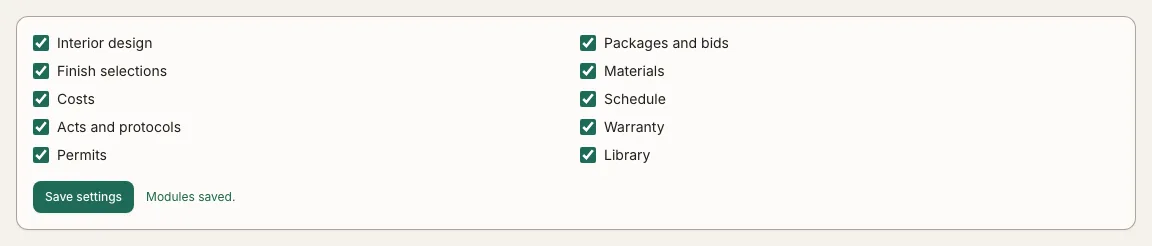
A new project starts with the library off. In Settings › Modules tick Library and press Save settings. It appears in the project's menu.
Read a recipe
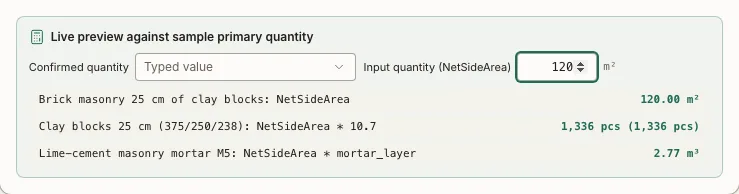
Library lists the recipes: how a work turns into quantities of materials, labour and machines. Pick one and type a quantity in Live preview against sample primary quantity to see what it needs. Edit changes the recipe as a new version.
Read a rate analysis
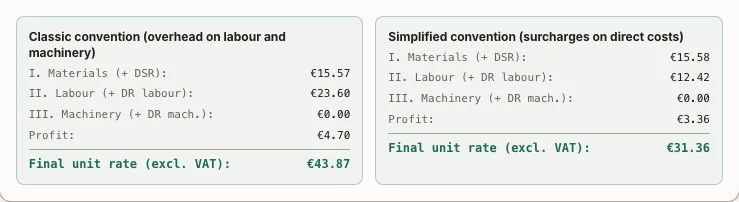
Rate analyses shows each work's unit price built up from its norms and prices, side by side under Classic convention (overhead on labour and machinery) and Simplified convention (surcharges on direct costs). Pricing indicator set chooses the mark-ups.
Give a material a new price
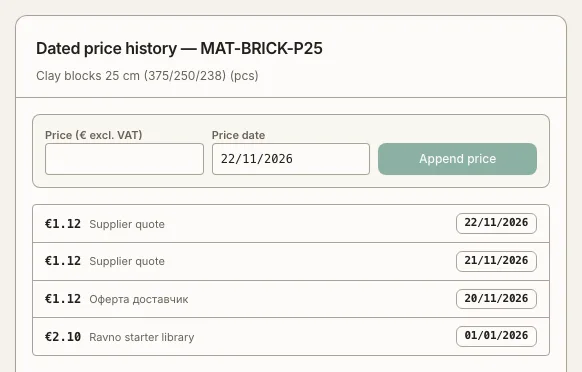
In Resources and prices pick the material, fill in Price (€ excl. VAT) and Price date, and press Append price. The old prices stay, each with its date.
Set the mark-ups
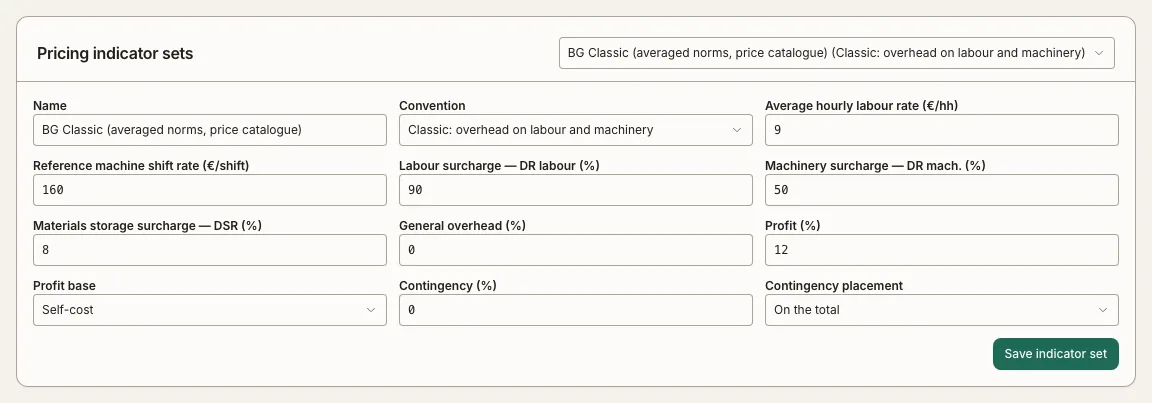
Mark-ups holds the hourly rate, the additional costs, General overhead (%) and Profit (%). Change them and press Save indicator set: the rate analyses that use the set follow.
Import your own data
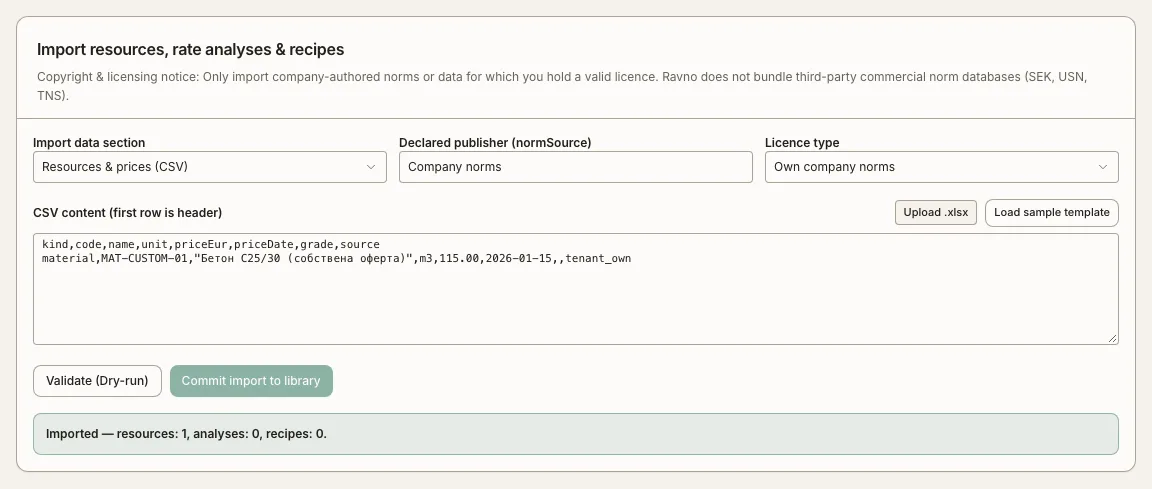
In Import choose what you import in Import data section, paste the CSV or upload an .xlsx; Load sample template shows the columns. Validate (Dry-run) checks every row without saving, and Commit import to library saves them. Import only norms you own or may use.