All guidesDrawings and modelSheet 2.01
Keep documents by part, with their versions
Documents is the project's library: every drawing, explanatory note, bill of quantities and archive, ordered by design part. You upload new files and new versions of old ones here. Ravno reads them, and they become the sheets in Drawings, the 3D model and the answers AI gives.
Open the documents
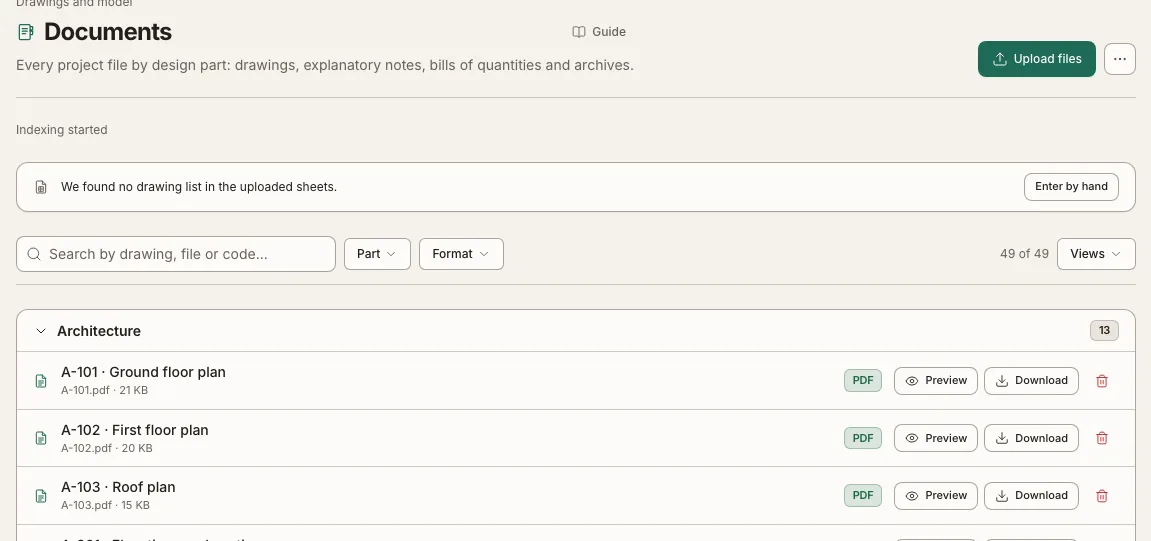
Choose Documents in the left bar; on a phone it is in the menu. The files are ordered by part, such as Architecture and Structural, and each part says how many files it has. Search by name or sheet code, or choose Part and Format. The More actions menu holds the downloads, such as the whole project in one archive, and Re-index for AI: Ravno reads every file again for AI.
Preview a file
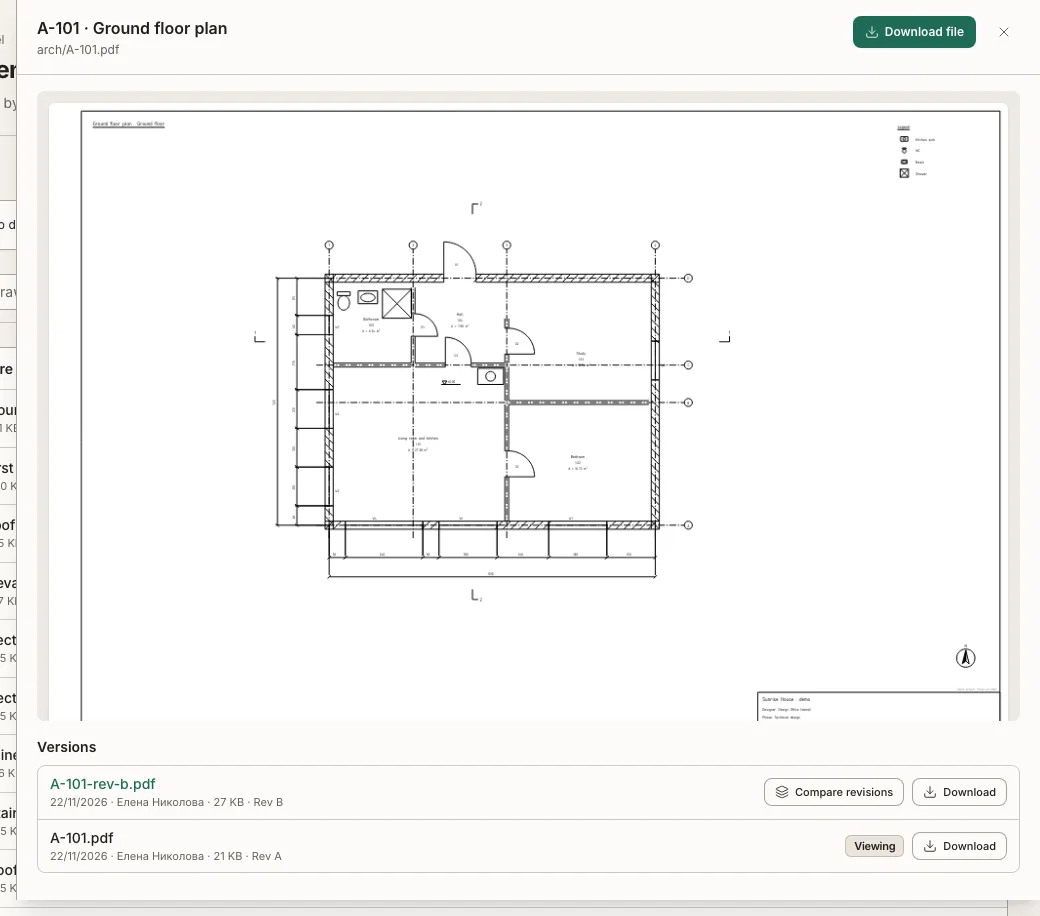
Preview on a PDF opens its pages right in Ravno, on a phone too. A DWG or DXF drawing opens as sheets in Drawings, and a file the browser cannot show, such as Excel, offers Download file. Below the preview, Versions lists every upload of the file with its date, who uploaded it and the sheet's revision. When the sheet has a newer revision, Compare revisions shows them side by side in Drawings.
Upload files
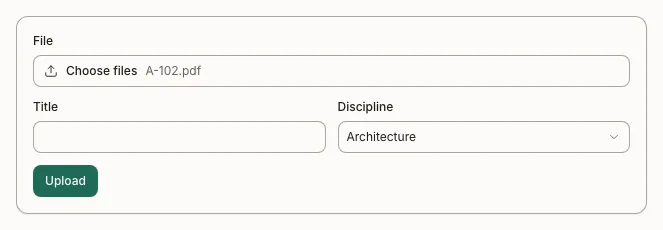
Press Upload files and choose Choose files. You can pick several files at once if they belong to one part. Choose the Discipline. With one file you can type a Title; without one it carries its name. Press Upload. Ravno takes PDF, DWG, DXF, IFC, Word, Excel, photos and ZIP and RAR archives. Uploaded drawings become sheets in Drawings once Ravno has read them.
Upload a new version
A new version is uploaded like any file: with the same name and in the same part, for example A-102.pdf again in Architecture. In Documents the file stays one row: the newest upload, with the earlier one's title and a note of how many versions it has. The old versions are not lost. Open the preview and download them from Versions.

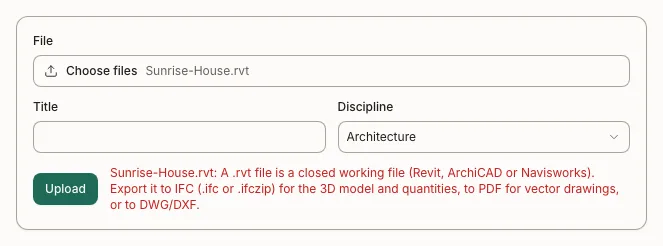
Export the file if Ravno cannot read its format
Revit, ArchiCAD and Navisworks working files, MicroStation drawings and point clouds are not uploaded. Ravno says what to export the file to: the model to IFC, for a 3D model and quantities, and the drawings to PDF, DWG or DXF. Export it from the program it was made in and upload the new file.
See one part's technical data
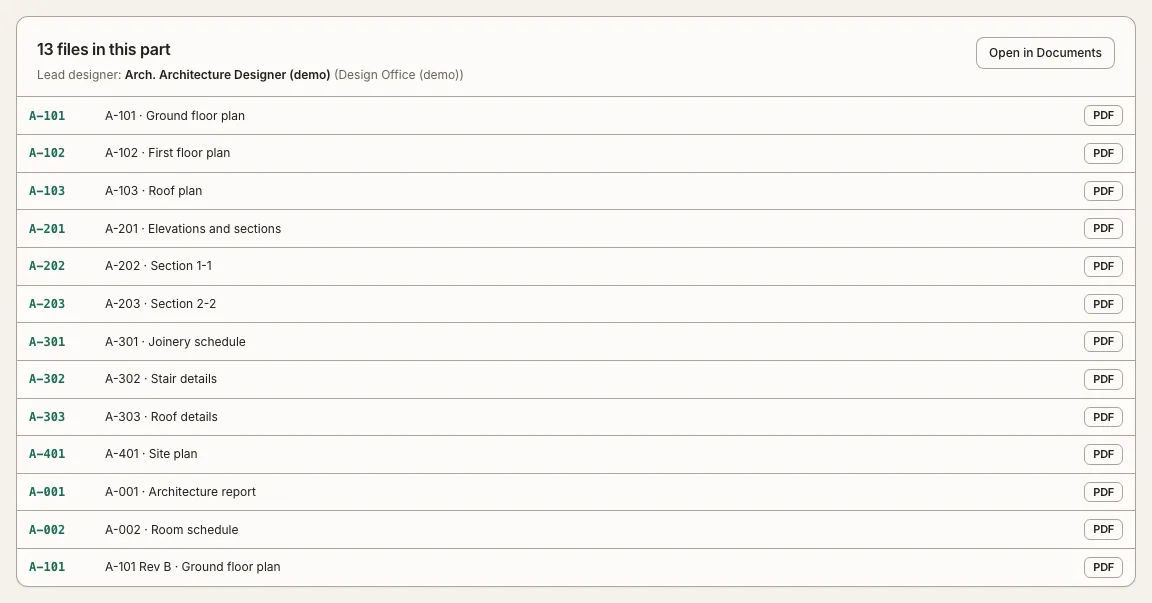
Technical data is below Documents in the left bar. Choose the Part. The page shows the part's lead designer, its files with each sheet's code and the tables Ravno has read from them, such as the joinery schedule. A sheet that has been read opens in Drawings, any other file in Documents. Open in Documents shows only this part's files in Documents.