All guidesBill of quantities, offers and costsSheet 4.01
Check the bill before it goes out
The bill of quantities goes to the bidders and later into the contract. Before it goes out, check that it is complete and adds up, see where each number comes from, freeze the version you send and open the exports. The example is Sunrise House.
See whether the bill is ready
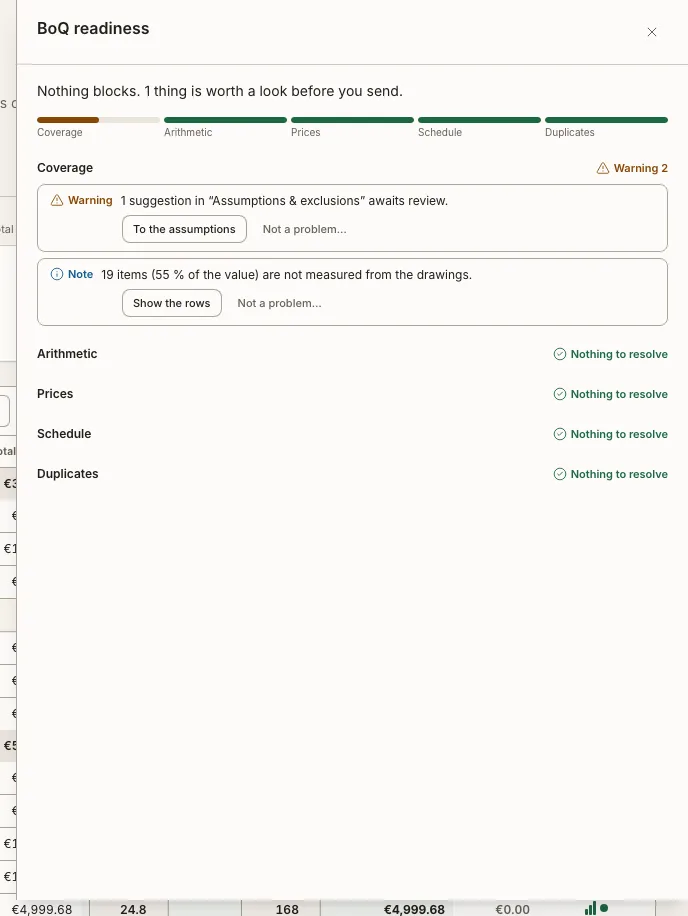
Open BoQ and offer. The chip beside the title, BoQ readiness, opens the checks in five groups: Coverage, Arithmetic, Prices, Schedule and Duplicates. A blocker has to be resolved, or sent on as an assumption; a warning is worth a look; a note only informs. Each item has a button to where it is fixed, and Not a problem… for one that is not a problem, with your reason. While a blocker is open, the PDF report and the GAEB file ask before they leave.
Follow a row down to its sources
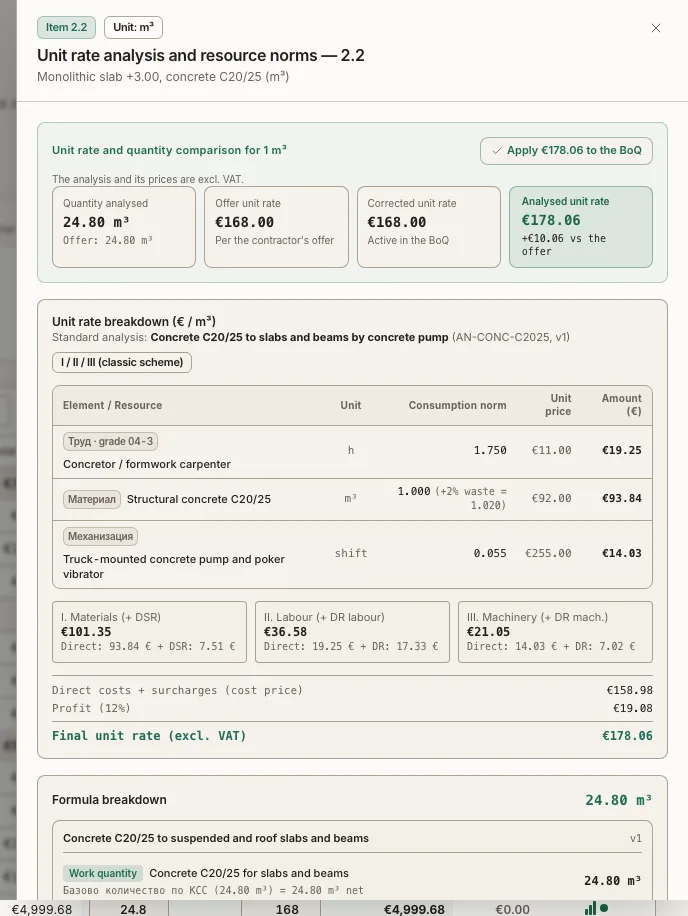
Click a row's name, here 2.2, the slab at +3.00: its panel shows where the quantity and the price come from. Open analysis opens the unit price analysis: the quantity measured from the plans beside the offer's, the labour, materials and machinery with their norms and prices, the overheads and the profit, and below, the materials for the whole quantity. Its button at the top puts the analysis's price into the bill.
See what is drawn, priced and in the schedule
Alignment, under BoQ and offer in the menu, says how much of the bill's value is drawn, priced and in the schedule. The bar shows the rest, and the chips below it each list one gap: Priced, not programmed, Priced, not drawn, Drawn, not priced, Programmed, no value and Quantities to check. Click a chip to see its rows.

Freeze the version you send
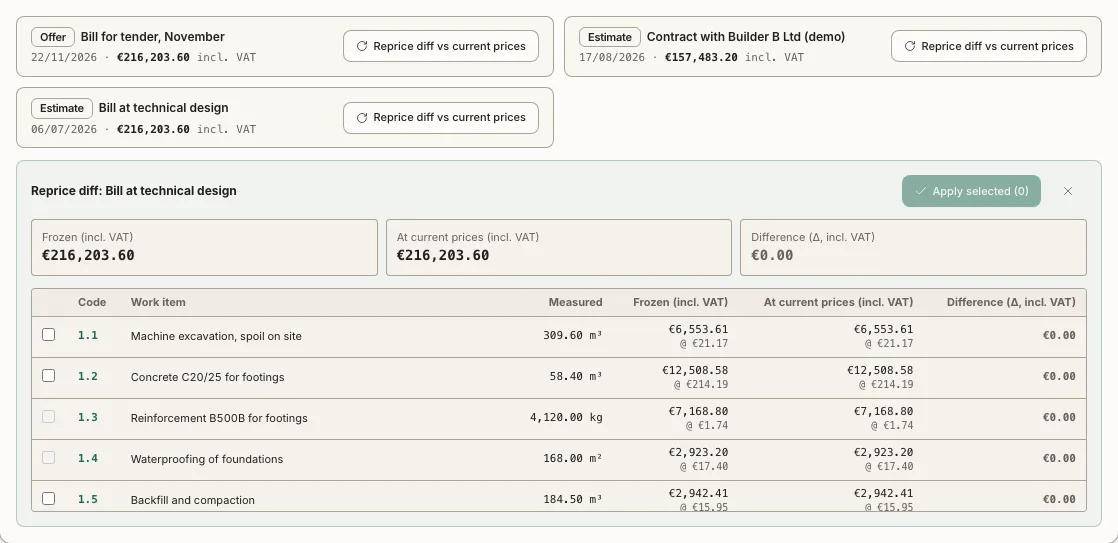
In Versions and check, name the version, choose Offer or Estimate and press Freeze snapshot. A frozen version no longer changes. Reprice diff vs current prices sets it beside today's prices, row by row, and ticks the rows whose price has moved; applying them changes the live bill, not the frozen version. In the example the prices have not moved since July, so the difference is nil.
Open the report for the contractor
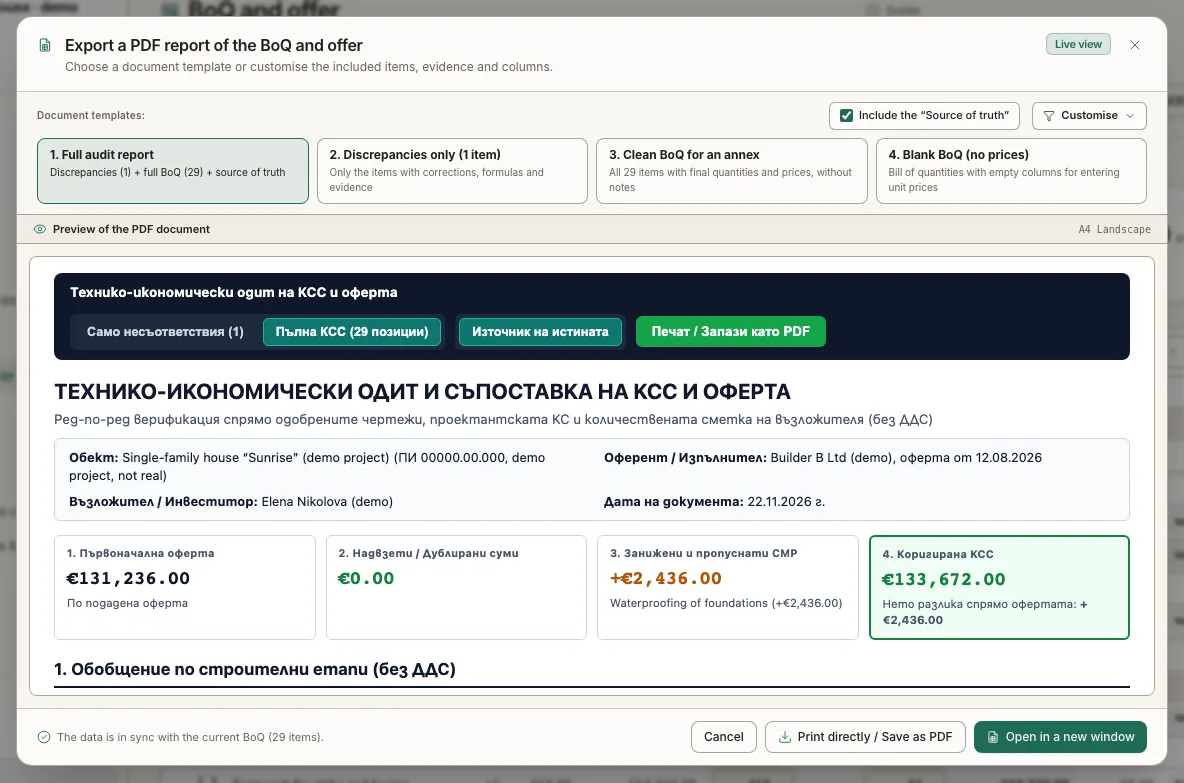
In the page's More actions menu, Contractor PDF report opens the report with a preview. Four templates: the full audit, the discrepancies only, a clean bill for the contract's annex, and a blank bill without prices for bidders to fill in. Open in a new window opens it to print or save as PDF. The report itself is in Bulgarian for now.
Take the bill as a table
Export (.CSV), in the same menu, downloads the bill as a CSV file, a row per position, to open in a spreadsheet.
Send the bill to estimating software
GAEB 3.3, in the same menu, downloads the bill in the exchange format that estimating software reads; the GAEB phase on the page chooses which file. Import GAEB reads a priced file back.