All guidesDrawings and modelSheet 2.04
Make a BoQ from the plan
The BoQ is worked out from the quantities you accepted on the plan, and from assumptions for what the drawing does not give. Each row points to its quantities and to the rate analysis of its unit price in the library. No quantity comes from AI.
Open the four steps
Upload the plan in Documents, then open it in Drawings and choose Measure and Quantities and schedules. Generate the BoQ from the plan leads through four steps: takeoff, scale, review and BoQ. The next step is marked. How to run the takeoff and confirm the scale is in Measure a plan and review its quantities.

Accept the elements
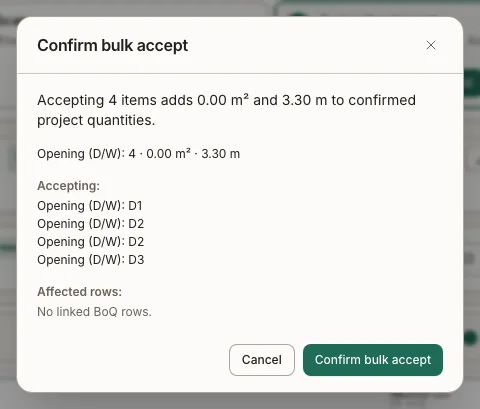
Only an accepted quantity goes into the BoQ. Above the queue, first reject every candidate of low confidence at once, then choose bulk accept: it accepts the candidates of high confidence, and before it does it shows how many elements, what areas and lengths, and which BoQ rows it touches. Accept the walls one by one: choose a wall, then Accept (A). The review step counts the accepted elements.
Set the assumptions
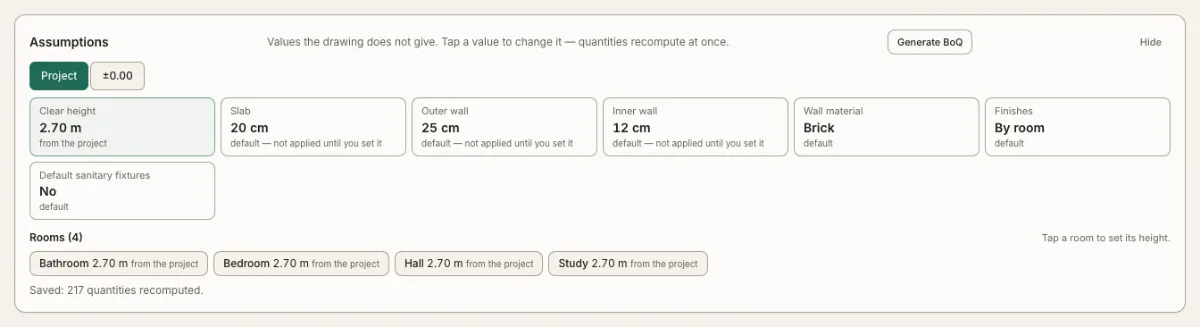
Above the steps is Assumptions: values the drawing does not give, such as the clear height, the slab's thickness and the walls' material. Under each it says where it comes from: a default, the project, the storey or the room. Choose a value, type your own and Save; the quantities are worked out again at once. A default thickness is shown, but it is not applied until you set it.
Generate the BoQ
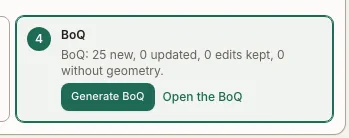
In the fourth step choose Generate BoQ. The answer says how many rows are new, updated, kept as your edits, and left without geometry. A quantity not yet accepted is left out, and the answer counts it. Below it is the list to check, such as a row whose height nobody set.
Open the bill
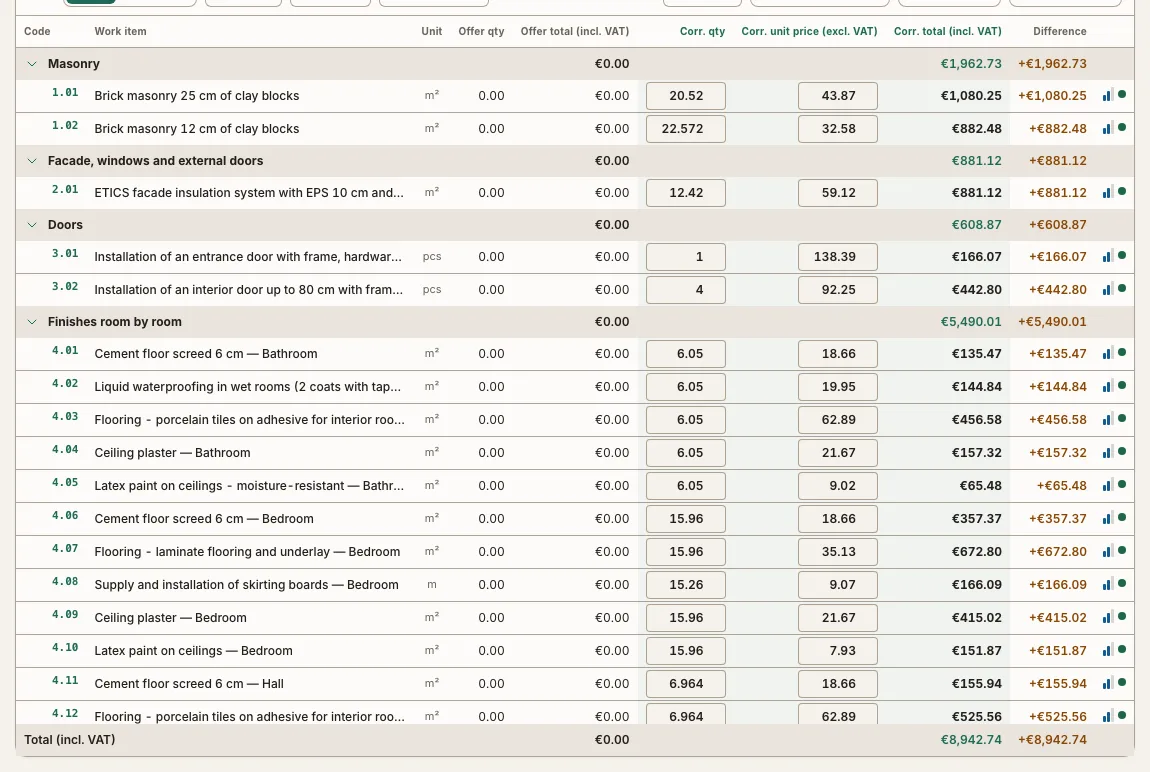
Open the BoQ leads to BoQ and offer. The rows are in sections, such as masonry, doors and the finishes room by room, each with its quantity from the plan and the unit price from its analysis. Until there is an offer, the offer's columns are zeros and the difference is the whole bill: that is the missing offer, not an error.
Generate again after a change
A changed assumption updates the bill's rows it touches at once. When you accept more elements, generate again. A row you changed in the bill keeps your value and is counted as a kept edit. A row you deleted does not come back. A row whose elements are no longer on the plan stays in the bill and is counted as a row without geometry, so you decide what happens to it.