All guidesFindings and coordinationSheet 3.01
Track findings to a close
Discrepancies is the register of everything that does not add up between the drawings, the structural calculations and the offer. Each finding has an assignee, a due date, comments and a status until someone closes it with a resolution. The example is Sunrise House: the owner assigns one finding to the co-owner, who settles it, and the owner checks and closes it.
Open the register
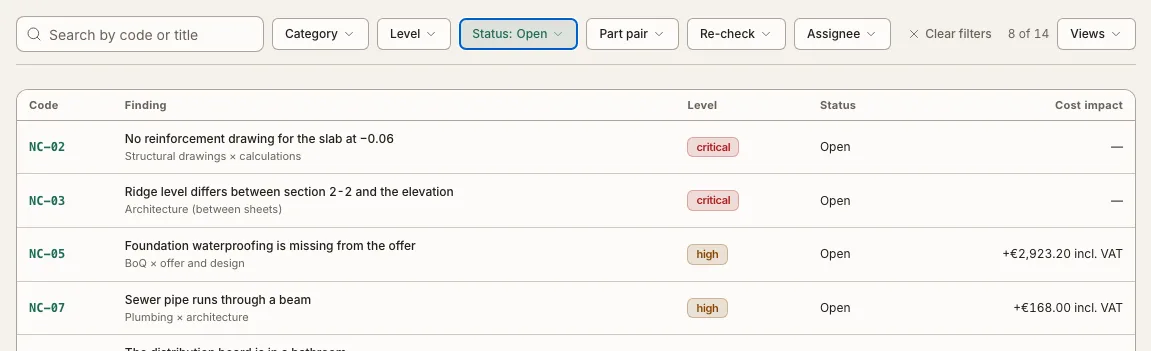
In the left sidebar choose Discrepancies. At the top are four figures: Total discrepancies with the count at each level, Resolution status with the bar of resolved ones, and Net savings across items and Additions from discrepancies, which add up the cost effect. Below them is the table: code, title, status and Cost impact. The critical ones not yet resolved are also listed under the table, in Unresolved critical findings.

Find the finding you are looking for
Type a code or part of the title in Search by code or title. The buttons beside the search narrow the list: Category, Level, Status with the count in each status, Re-check and Assignee. On the right it says how many of all are shown, and the choice stays in the page's address. A view with these filters is saved from Views.
Open one finding
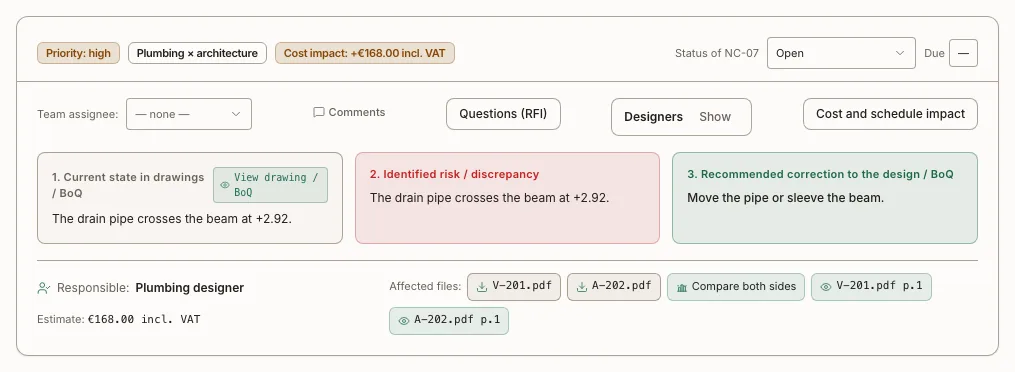
Click a row: the finding opens at the side, with its code and title. At the top are its level, its category and its cost effect. The three boxes say what the drawings show, what the risk is and which correction is recommended. Below them is who should make it (Responsible:) and the estimate of its effect.
See the evidence on the drawing
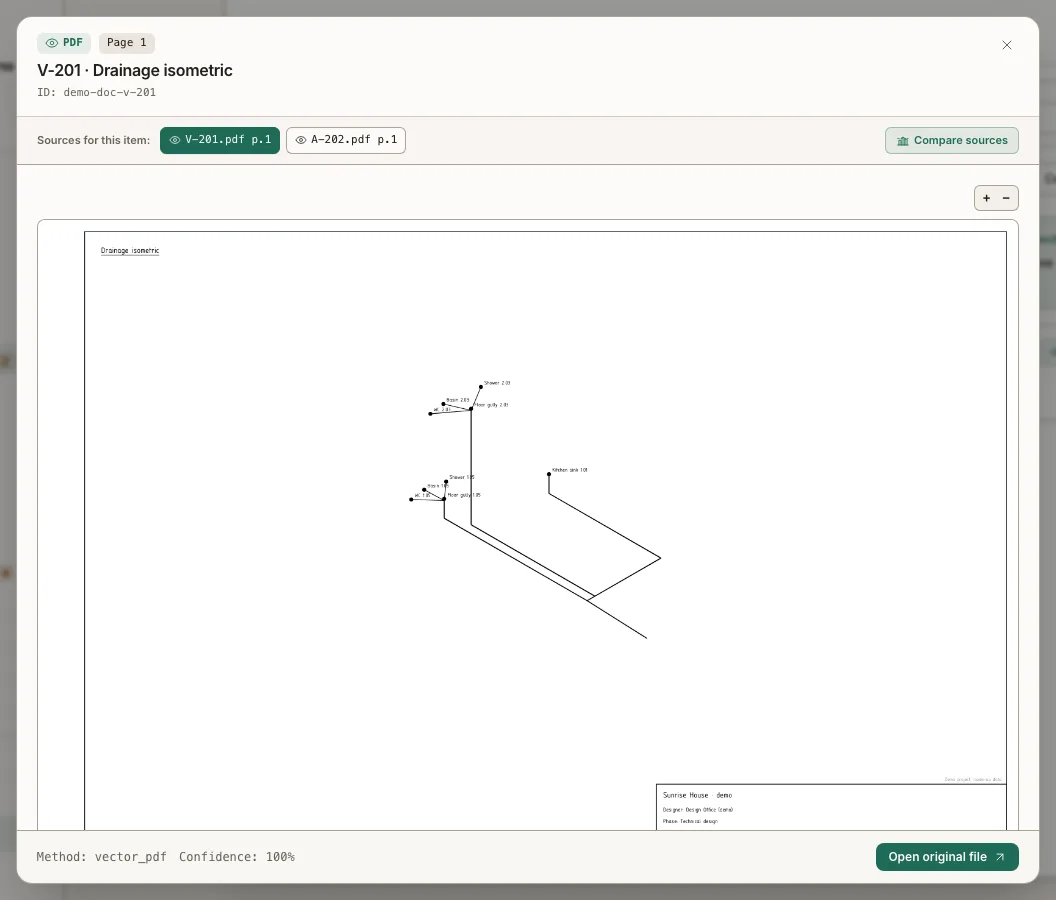
The first box, when it says View drawing / BoQ, opens the sheet that shows the problem. The buttons at the bottom right open each cited sheet on its own, and Compare both sides puts two sheets side by side when they belong to different parts. Affected files: downloads the files themselves. A finding placed in the model also has Show in 3D.
Weigh its effect on cost and time
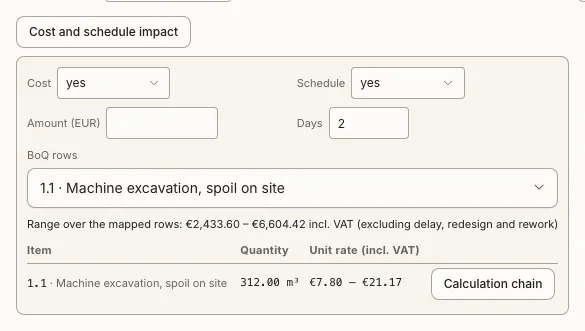
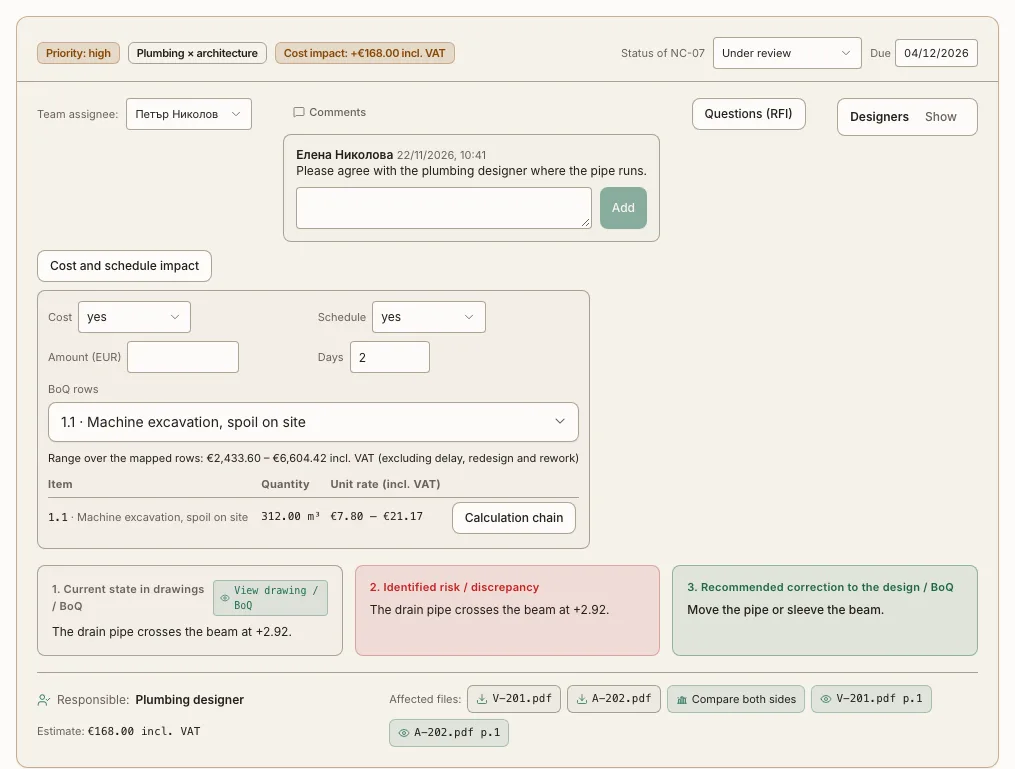
Press Cost and schedule impact. For Cost and Schedule choose yes, no or unknown, and if you know them, type the amount and the days. In BoQ rows choose the bill's items the finding affects: below them appears the range of their price, and a table with each one's quantity and unit rate, linked to its chain of calculation.
Assign it and give it a due date
In Team assignee: choose the team member who will take it forward; it goes into their Waiting on me. Beside the status choose the Due. Change the status to Under review. Under Comments write what you are waiting for and press Add: comments are seen by everyone on the project, with their author's name.
Settle it and send it for checking
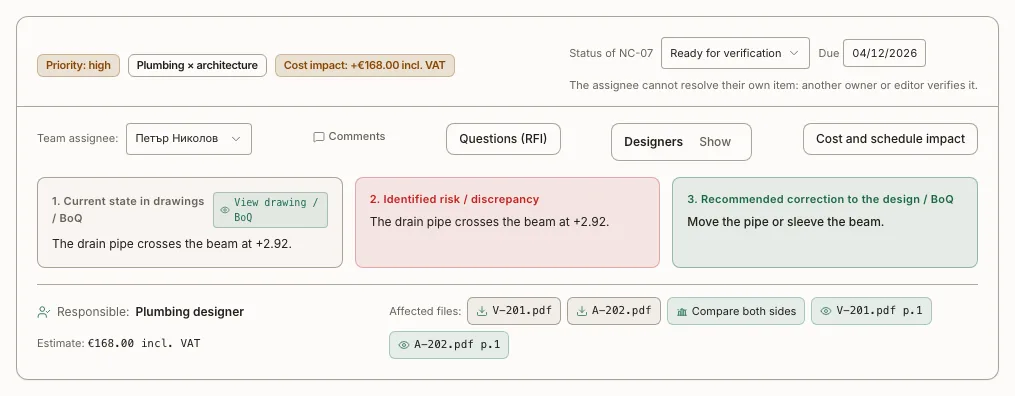
The assignee finds it in Waiting on me on the overview. When it is done, they write in the comments what was agreed and change the status to Ready for verification. They cannot close it themselves: The assignee cannot resolve their own item: another owner or editor verifies it.
Check it and close it
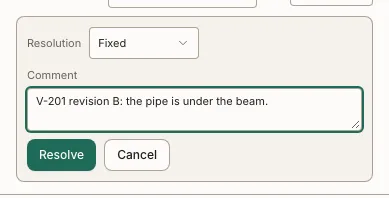
The owner reads the comments and changes the status to Resolved. Choose the Resolution: Fixed, Won't fix, Duplicate, Not an issue or Accepted risk. The last three need a Comment saying why. Press Resolve: the finding stays in the register as resolved, with its resolution.