All guidesGetting startedSheet 1.02
Create an account and sign in
An account is free, and you need one even when you are only invited to someone else's project. It takes about five minutes and access to your email.
Open the sign-up form
On the home page press Sign up at the top right; on a phone it is in the menu (Open menu). Fill in Name, Email and Password: at least 8 characters. The name is what your team sees next to your comments and tasks.
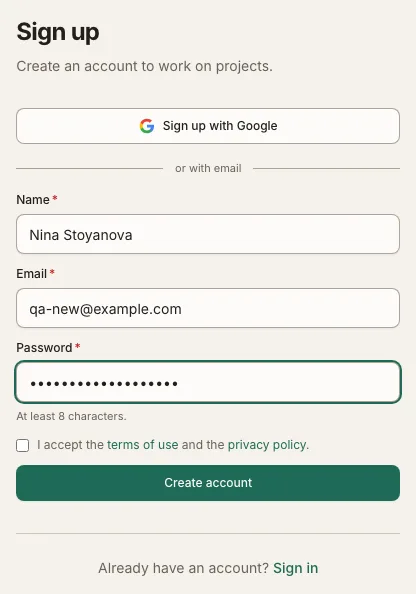
Accept the terms and create the account
Tick that you accept the terms of use and the privacy policy; both open in a new tab from the links next to the box, so the form keeps what you typed. Press Create account. If something is missing, the form says exactly what, below the fields. With Sign up with Google the account is made from your Google account, with no password, but the box is asked for first then too.
Confirm your email
Right after that, Ravno sends you an email with a confirmation link. Open it from your mailbox: the page says Your email has been verified. You can work without confirming, but you cannot accept invitations to projects or manage a plan. If the email does not come, press Resend link; Continue without verifying carries on, and you confirm later.
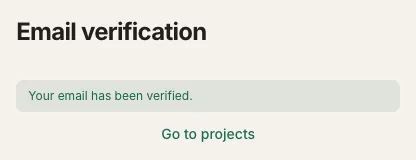
The first screen: your projects
Press Go to projects. My projects lists every project you take part in. Projects you are invited to open without a plan; a project of your own needs one, and the trial lasts 14 days.
Your profile and data
The account menu is the button with your photo or a person icon at the top right (in a project on a computer: your name at the bottom of the left bar). Choose Profile and data: it has your email, Download my data (JSON), which downloads everything we keep about you, and Delete account. An account can be deleted once you have handed over your projects and ended your plan (Your data: download, hand over, delete).
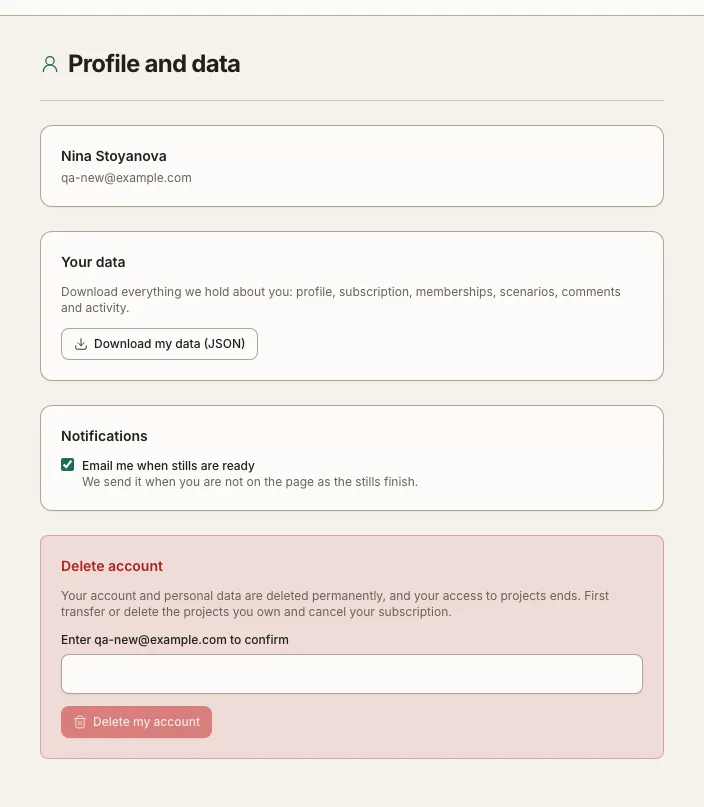
Choose the language and theme
In the same menu, next to Language, choose BG or EN: the whole interface changes at once, and emails to you come in the language you asked for them in. Above it, Dark theme turns the dark theme on. Both are remembered on this device.
Sign out
Choose Sign out in the menu; you are back on the home page, in the language you chose. Next time, sign in with Sign in, your email and your password.
If you forget your password
On the sign-in page press Forgot password?. The email you already typed is filled in; press Send link. The page says the same for any email, so it does not give away who has an account, and the email comes only if the account exists.
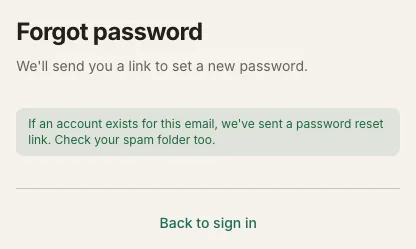
Set a new password and sign in
Open the link in the email. The New password page shows which account it is for; type the new password and press Save password. The link works for a limited time; if it has run out, ask for a new one. After Sign in you sign in with the new password.