All guidesGetting startedSheet 1.03
Start a project from your files
Your own projects come with a subscription. The first 14 days are free: your card is saved when you sign up, and the first payment is taken when the trial ends.
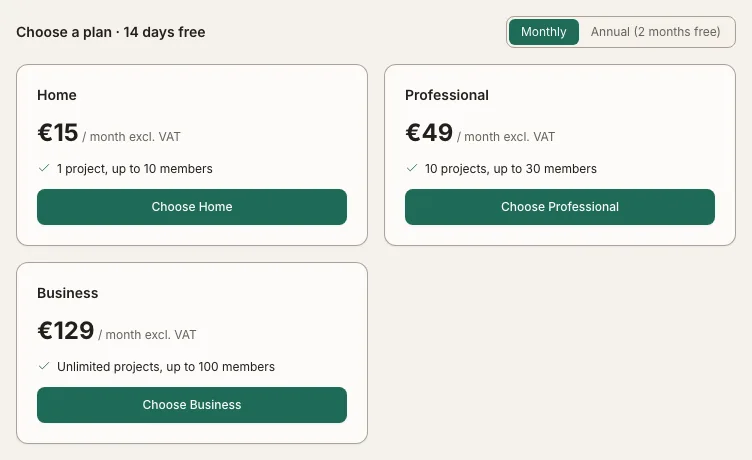
Choose a plan
In My projects, choose View subscriptions. Pick Monthly or Annual (2 months free) and the plan you need: for one house, Home is enough (€15 a month excluding VAT). Press the button under the plan.
Save your card with Stripe
You pay on Stripe's page. The e-mail is yours; fill in the card, the name and the billing address, and your VAT number if you buy as a company. Nothing is charged today: Stripe shows the date of the first payment. Once you have saved it, Ravno takes you back to your projects.
The trial begins
Your projects show Thank you! Your subscription is active – create your first project., and the new-project window opens by itself. Your subscription is in your profile menu, under Subscription. It shows Free trial and the date the trial ends. From there, Manage subscription opens Stripe's page, where you change the plan or the card, download your invoices and cancel the subscription. The plans, AI credit packs and a lapsed plan are in Subscription, packs and a lapsed plan.
Create the project
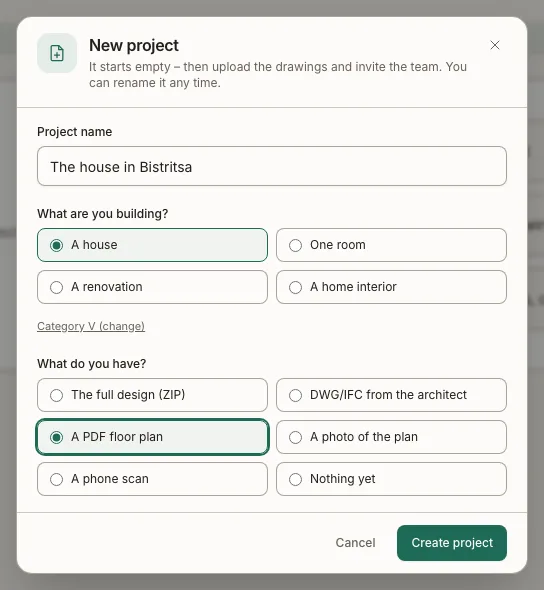
In the new-project window (later: New project in My projects), name the project and answer two questions: What are you building? and What do you have?. Press Create project.
What your answer changes
The answer tells Ravno where to begin. The full design (ZIP), DWG/IFC from the architect, A PDF floor plan and A photo of the plan lead to the upload and say which files to choose. With A phone scan the project starts from scanning the rooms with your phone, and with Nothing yet from an empty plan you draw yourself. You can change the answer later in the project's settings.
Upload the first file
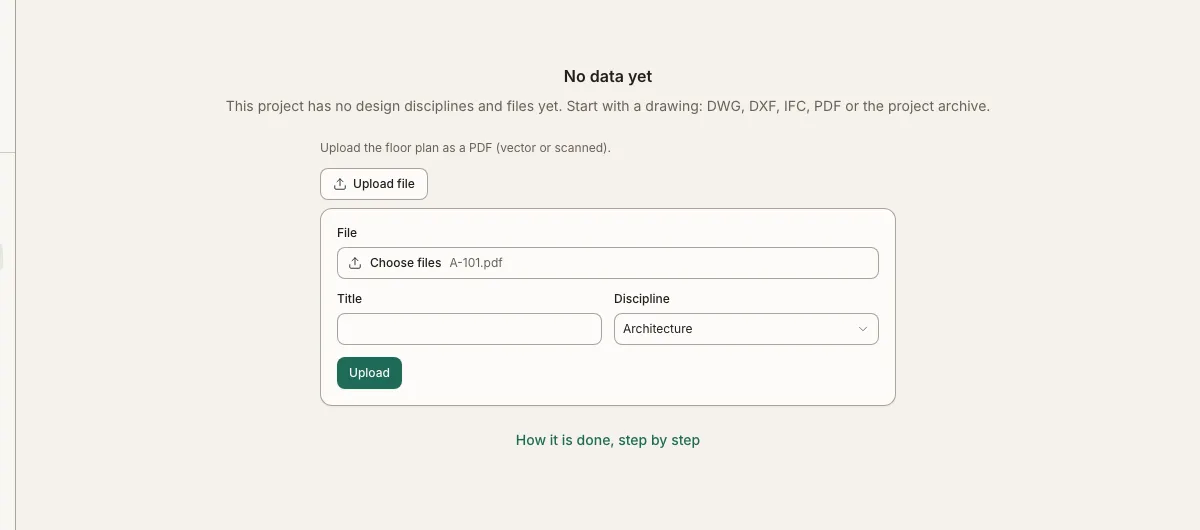
The new project offers Upload your drawings as its next step. Choose Upload drawings, then Upload file, pick the file and the part of the project it belongs to, and press Upload. Ravno reads the file by itself; what happens next is in Keep documents by part, with their versions.