All guidesGetting startedSheet 1.04
Invite your team and choose what each one sees
Everyone signs in with their own account and sees only what their role allows. Choose the role by its card: each says what the person will see and what they will not. You need a project you own or co-own.
Open People and invitations
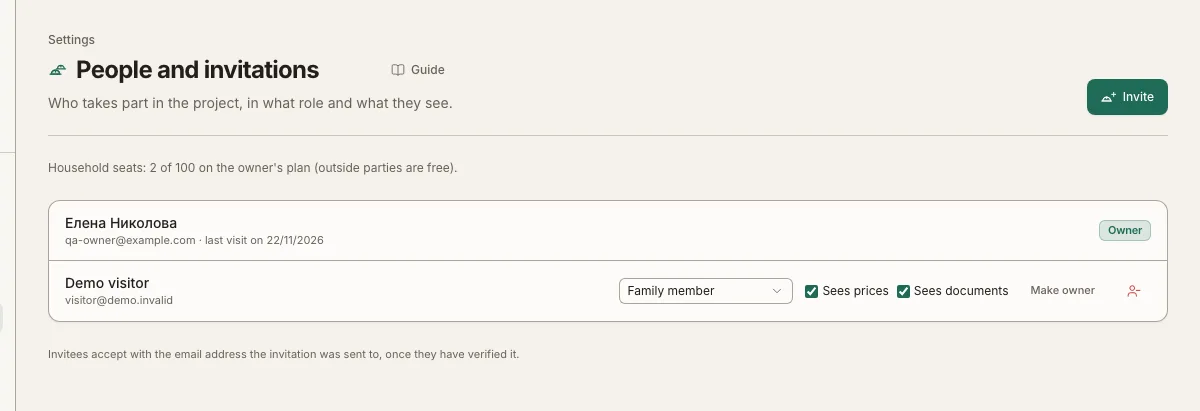
In the project, press Settings at the bottom of the left bar (on a phone: in the menu at the top left) and choose People and invitations. Everyone taking part is here with their role. The line above the list shows how many household seats you use: co-owners and family members take a seat, outside parties are free. A plan has 10 seats on Home, 30 on Professional and 100 on Business.
Add the bidder's company
The person who will make an offer is invited on behalf of their company, so add the company first. In Companies, press New company, fill in Name and Company ID (ЕИК) and press Save. The EIK is checked by its check digit. The company register is shared by all your projects.
Send an invitation
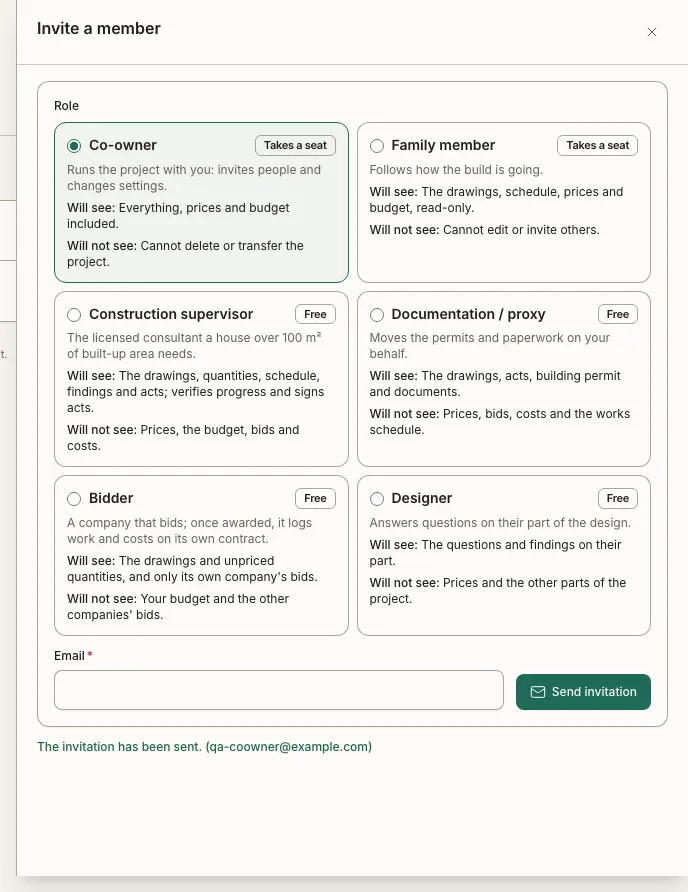
In People and invitations, press Invite. Choose the role's card: a Co-owner runs the project with you, and under Will see and Will not see it says exactly what the person will have. The badge in the corner says whether the role Takes a seat or is Free. Enter the Email and press Send invitation. The invitation goes by email and waits under Pending invitations until it is accepted.
How the invited person accepts
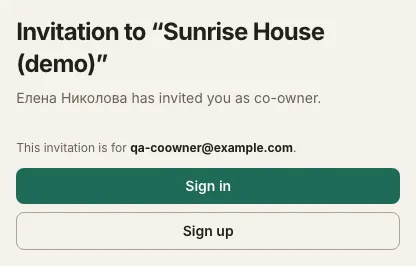
The invited person gets an email from you with the project's name and a link. The link shows the invitation: who invites and in what role. With Sign in or Sign up they sign in with the email the invitation was sent to, confirm it if the account is new, and press Accept invitation. The project opens, and from then on they are in your list with their role. An invitation is valid for 7 days.
Invite the other roles
Repeat for each person with their card. A Family member sees the drawings, the schedule and the money, read only. The Construction supervisor checks progress and signs acts, without the prices. The Documentation / proxy handles permits and documents on your behalf. For a Bidder, also choose the Bidding company from the register: a bidder sees the quantities without prices and only their own company's offers. Designers are invited per discipline, from a finding, so their card leads there.
Show the prices to the supervisor
A family member's and the supervisor's rows have two boxes. Sees prices shows the prices and the budget, and Sees documents all the project's documents; without it they see only the site photos and their own files. A box takes effect at once, the next time a page opens. Each person's role is changed from the menu next to their name.

Resend or withdraw an invitation
Under Pending invitations is every invitation not yet accepted, with its role and the date it expires. Resend sends a new email and renews the date. Withdraw cancels it: the link in the email stops working and the seat is freed.
Remove a member
Press the remove icon at the end of the row and confirm. The person loses access at once, and what they did in the project stays. A member can also leave on their own with Leave project. An owner cannot be removed: first hand over ownership with Make owner.
Connect a phone for site capture
In Phones, each member connects their own phone to the capture app. Pair a phone shows a QR code that works once and for a short time: open the page on a computer and scan the code with the phone's camera. Connected phones are listed below it, and each can be disconnected on its own. How to capture with the phone is in Record the site with your phone.
The invitation limits
A project can send up to 20 invitations in 24 hours; after that the invitation says the limit is reached, and it frees up 24 hours after the first of them. When the household seats are full, an invitation for a co-owner or a family member is refused: remove someone or upgrade the plan. Outside parties take no seat.