All guidesInteriorSheet 9.03
Choose a variant, send it to the budget and print the drawings
Variants are trials and do not change the home. When you decide which one is built, you choose it. Only writing it into the model tells the project what is taken out and what is built. Its drawings can be printed at any time, for a draft too.
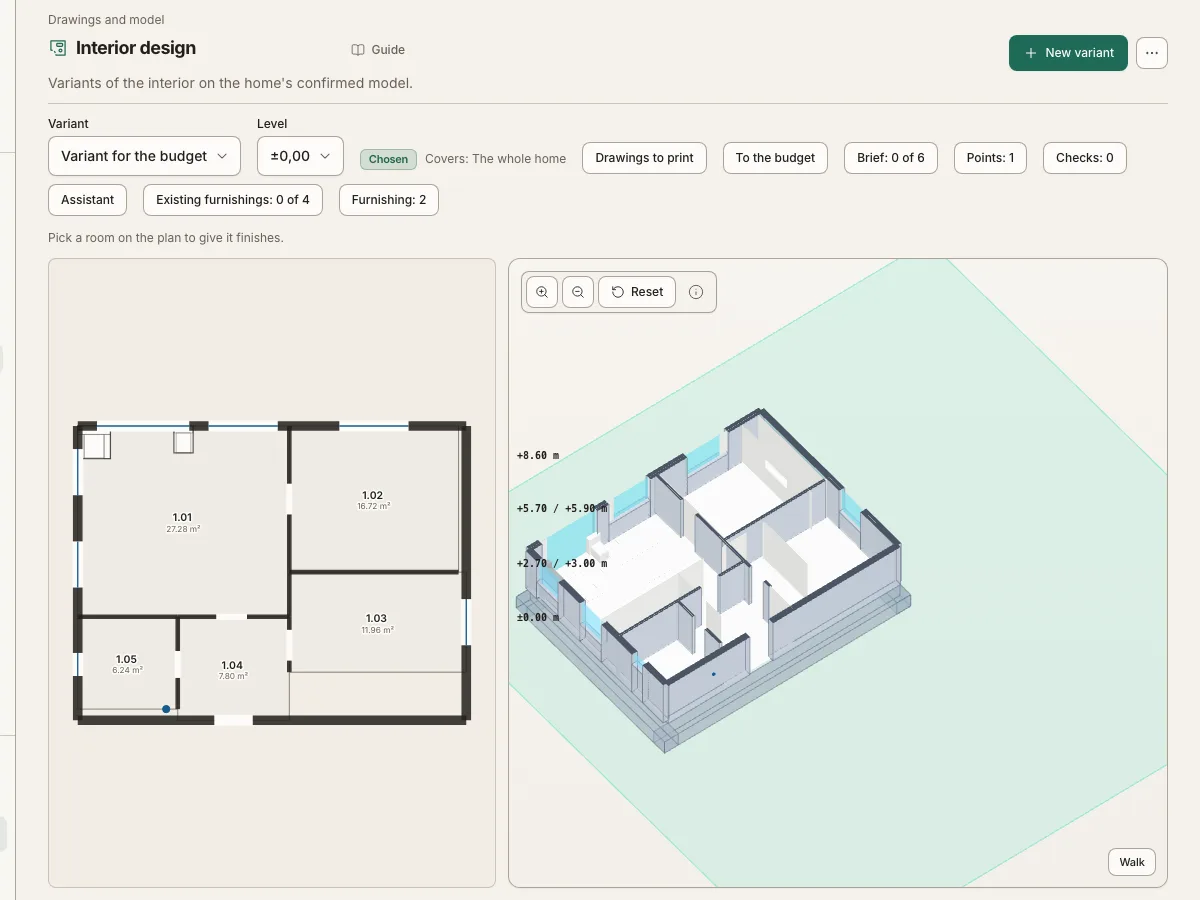
Choose the variant
In Design open the variant that will be built and press Choose this variant. For the same home, unit or level one variant is chosen: the one chosen before becomes a draft. The chosen variant's confirmed points are counted in the rooms' quantities.
Send it to the budget
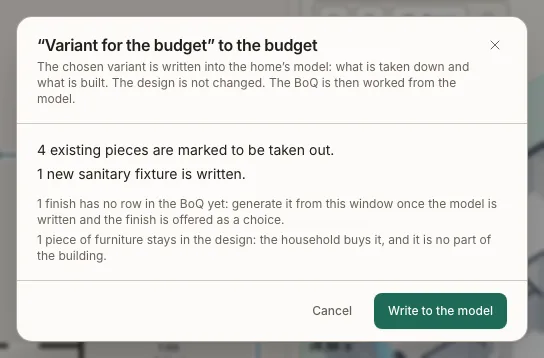
To the budget first shows what will be written: which existing pieces and partition walls are taken out and which partitions and sanitary fixtures are built, and apart from them what is not written and why. The variant's finishes do not go into the bill: each one that is another material than its row has is offered as a choice under Selections, and its price counts once you approve it there. Write to the model writes it into the model. The design itself is not changed; if you later choose another variant, what this one wrote is taken back.
Bring the BoQ up to date
Once it is written, the same window offers Generate BoQ: the bill is worked again from the model. The new drywall partitions, their doors and the new sanitary fixtures get rows; furniture taken out has no row. The window says what the generation did, and how many finishes it offered as choices now that their rows exist. The rows are under BoQ and offer; for the budget see Turnkey budget and what-if scenarios.
Print the drawings
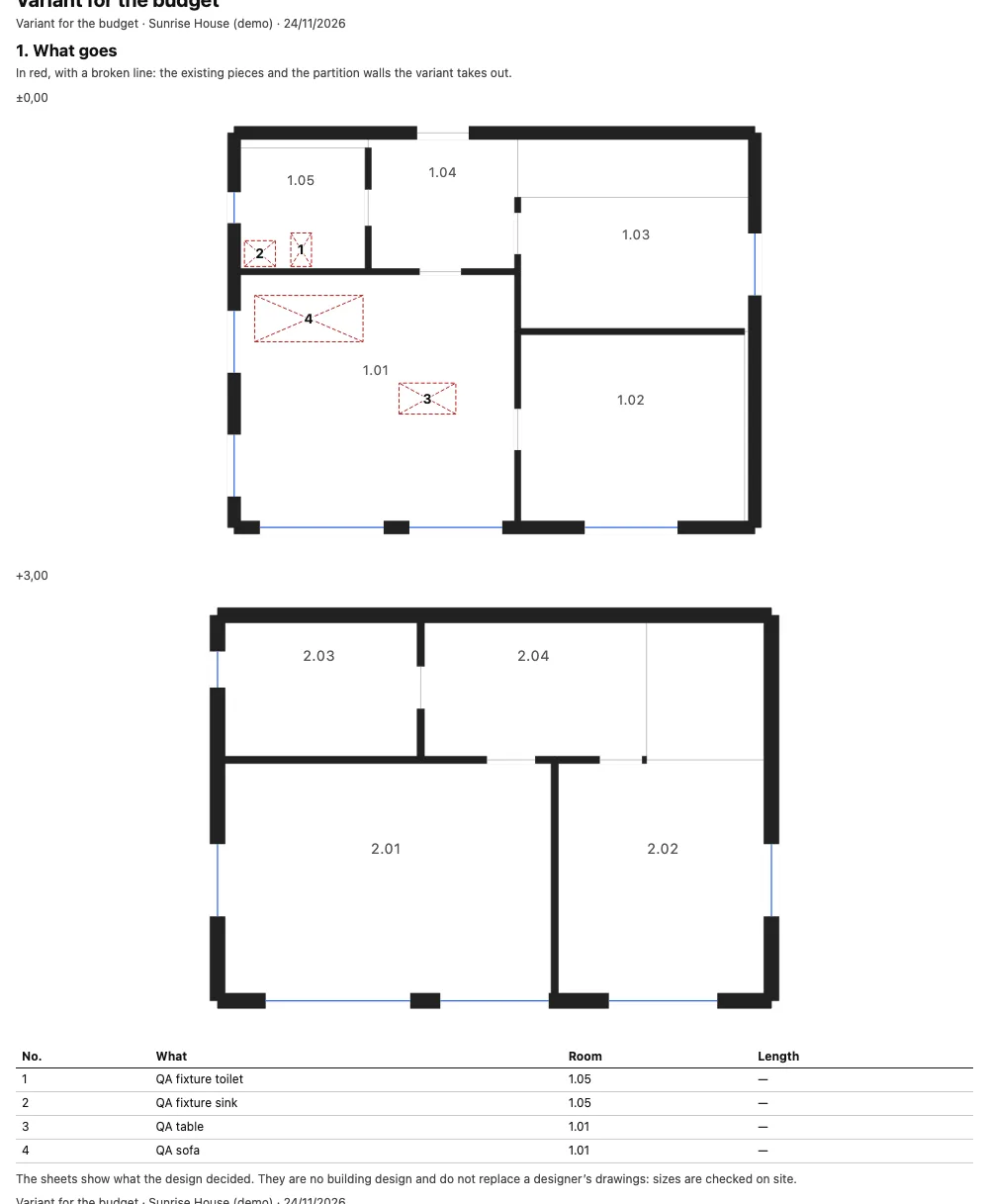
Drawings to print opens six sheets in a window of their own: what goes, what is built, the furniture with its sizes, the finishes by room with their areas, water and drains, electricity and lighting. Each point comes with how it is known, and an unconfirmed one is marked as such. Print or save as PDF prints them or saves them as a PDF. The sheets are no building design.