All guidesAI and phoneSheet 7.03
Scan your rooms with an iPhone
A phone with LiDAR measures the rooms as you walk through them: the walls, doors, windows and floor, with their lengths and areas. The scan arrives in the project as a “LiDAR заснемане” sheet with candidate elements. Only what you accept goes into the quantities.
Pair the phone
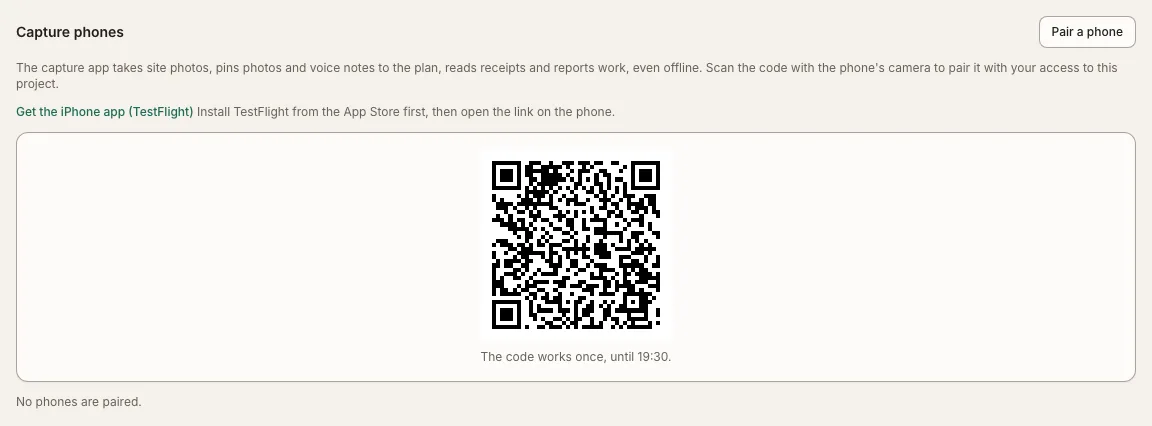
You scan in the Ravno Site app, paired with the project. In the project's settings, under Phones, Pair a phone shows a QR code: point the phone's camera at it and confirm in the app. Pairing step by step is in Record the site with your phone.
Start the scan
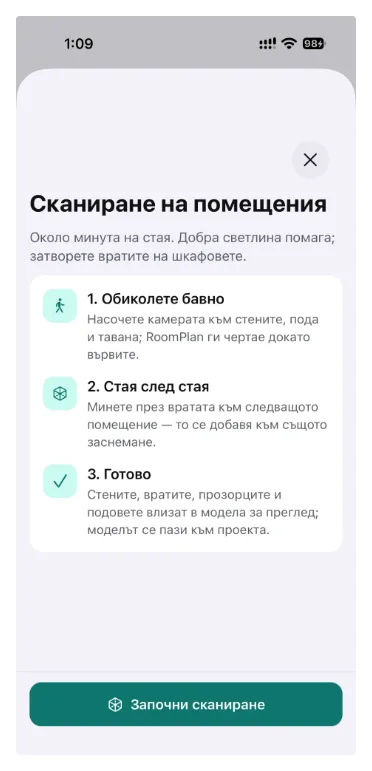
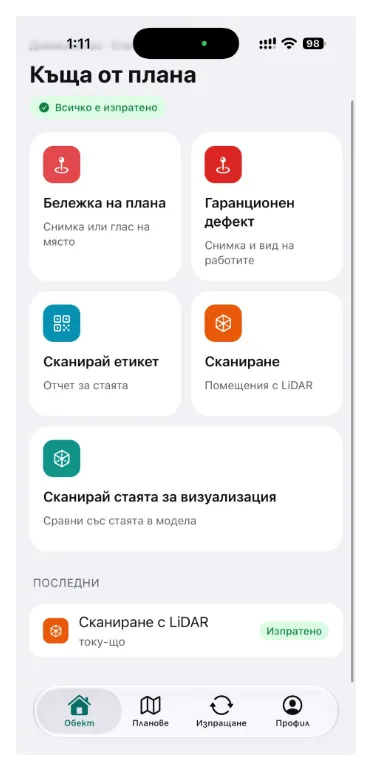
On the app's home screen choose Scan, then Start scanning. It needs an iPhone or iPad Pro with LiDAR; on another phone the home screen does not show Scan. About a minute per room; good light and closed cupboard doors help. In an interior design project the same tile reads Scan the home, and its screen first says what a scan cannot do: one floor at a time, up to about 186 m², mirrors and floor-to-ceiling glass confuse it, and built-in wardrobes and the kitchen arrive as boxes. The furniture of such a scan is recorded as existing, and in the design you decide what stays.
This step is not checked automatically. A scan needs a phone with LiDAR in a person's hand. The picture is from an iPhone 17 Pro.
Walk the room
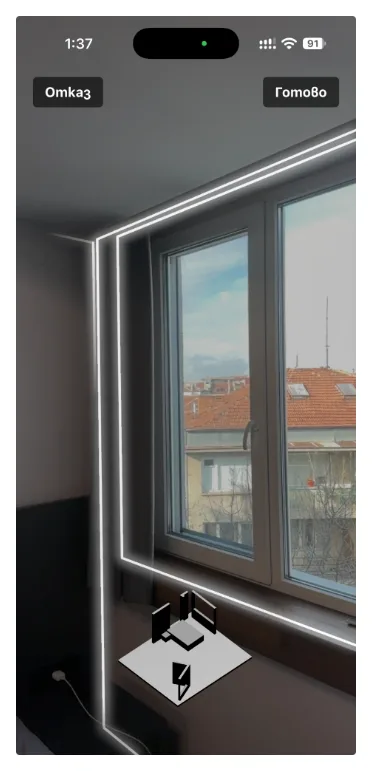
Walk slowly, the camera on the walls, floor and ceiling. As you go, the phone draws the walls, doors and windows over the camera's view. Walk through the door into the next room: it joins the same scan. If the phone loses the room, in the dark say, the scan stops: choose Start again.
This step is not checked automatically. The test does not walk a room with a phone in hand. The picture is from an iPhone 17 Pro.
Save the scan
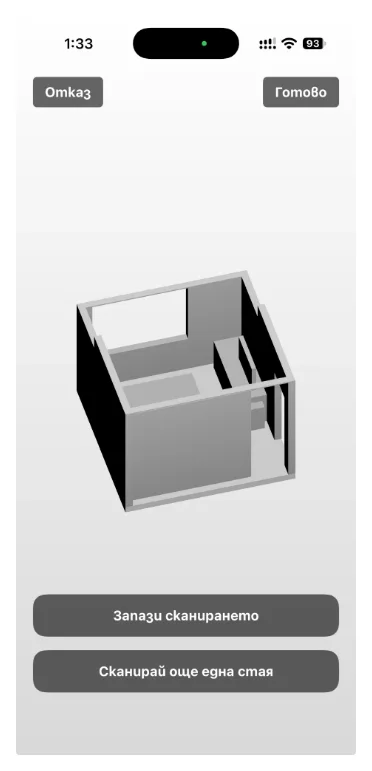
When you have covered everything, choose Done. The phone shows the plan in 3D. Scan another room carries on, Save the scan sends it to the project, and Cancel drops it.
This step is not checked automatically. The test does not hold a phone with LiDAR. The picture is from an iPhone 17 Pro.
Wait for the record to be sent
The scan waits in the queue like anything else the phone records, and goes once there is a connection; without one it stays on the phone. Under Recent on the home screen it reads Sent once the project has it.
This step is not checked automatically. The test sends the files of a real scan the way the app sends them. The picture is from an iPhone 17 Pro.
Open the scan's sheet
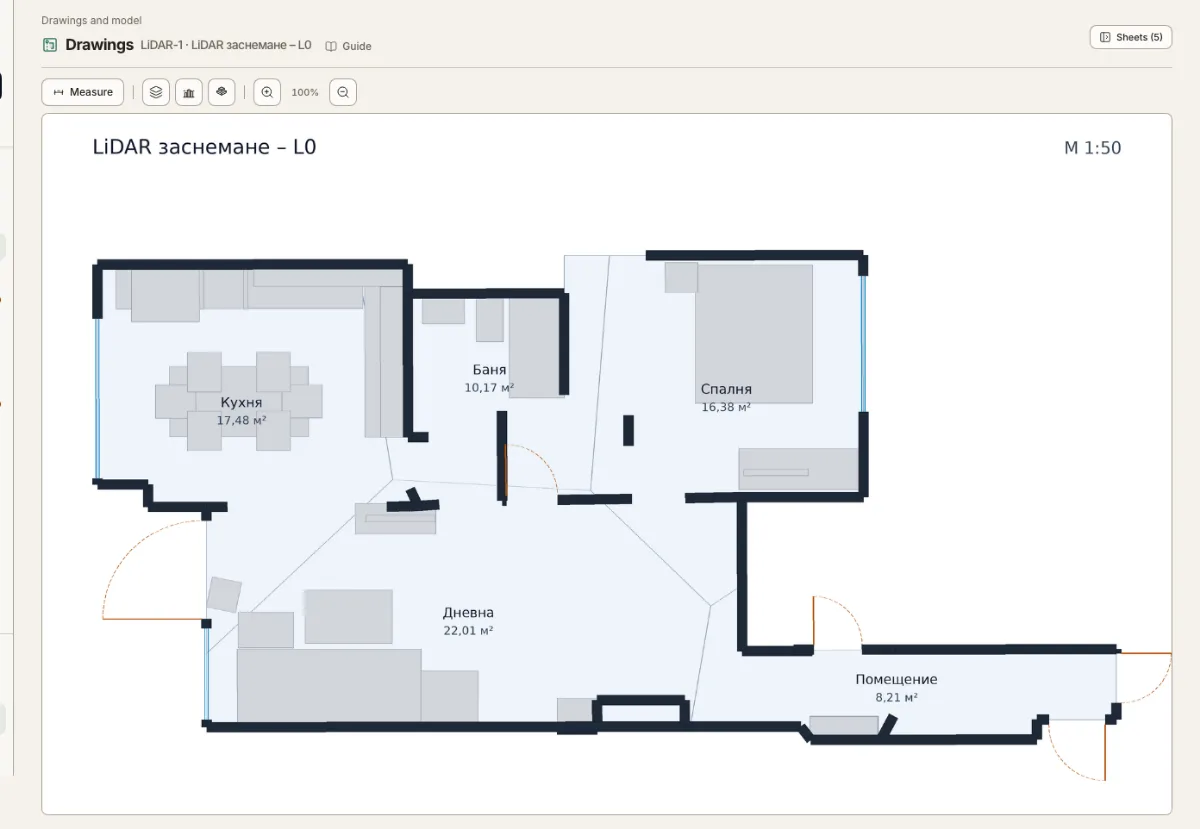
The scan becomes one of the project's sheets in Drawings. Open Sheets and search for “LiDAR”: the sheet is named “LiDAR заснемане – L0” (LiDAR scan), after the level it was scanned on. It draws the plan from above, square to the sheet, with each room's name and floor area. The scale is confirmed on import, since the phone measures in metres. A room the phone did not recognise is called “Помещение” (Room).
Review the candidates
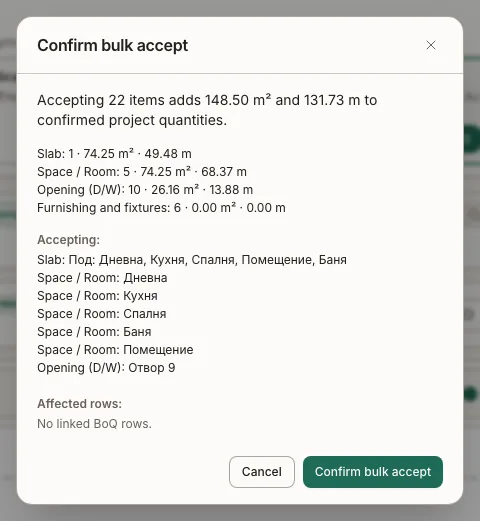
Choose Measure: the queue lists the scan's walls, rooms, doors, windows and furniture as candidates. First, the button above the queue rejects the low-confidence candidates at once, such as furniture the phone was unsure of. Then the bulk accept shows how many elements, which areas and lengths and which bill lines it touches, before it accepts them. Accept the walls one by one with Accept (A). How the accepted quantities become a bill is in Make a BoQ from the plan.